Multi-Factor Authentication (MFA)
Inmor supports Multi-Factor Authentication (MFA) to add an extra layer of security to administrator accounts. MFA is powered by django-allauth and supports multiple authentication methods.
Overview
MFA provides additional security beyond username and password by requiring a second factor for authentication. Inmor supports:
TOTP (Time-based One-Time Password) - Use authenticator apps like Google Authenticator, Authy, or 1Password
WebAuthn/Security Keys - Use hardware security keys like YubiKey or built-in platform authenticators (Touch ID, Windows Hello)
Accessing MFA Settings
After logging in, administrators can access MFA settings at:
/accounts/2fa/
Or through the Django admin interface by clicking the “MFA Settings” link.
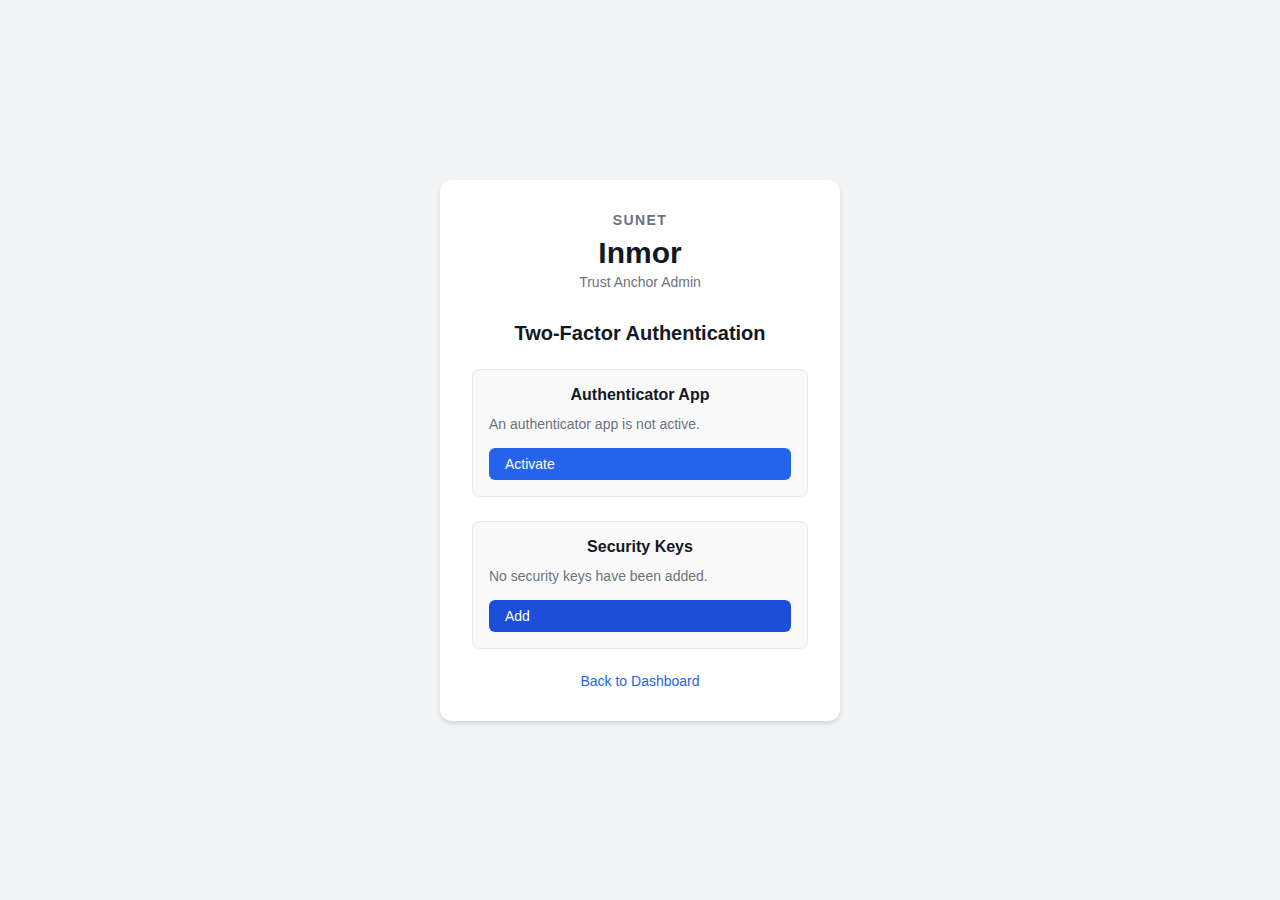
Two-Factor Authentication settings page
Setting Up TOTP
TOTP (Time-based One-Time Password) uses authenticator apps to generate 6-digit codes that change every 30 seconds.
Navigate to MFA Settings (
/accounts/2fa/)Click Activate under “Authenticator App”
Scan the QR code with your authenticator app
Enter the 6-digit verification code from your app
Click Activate to complete setup
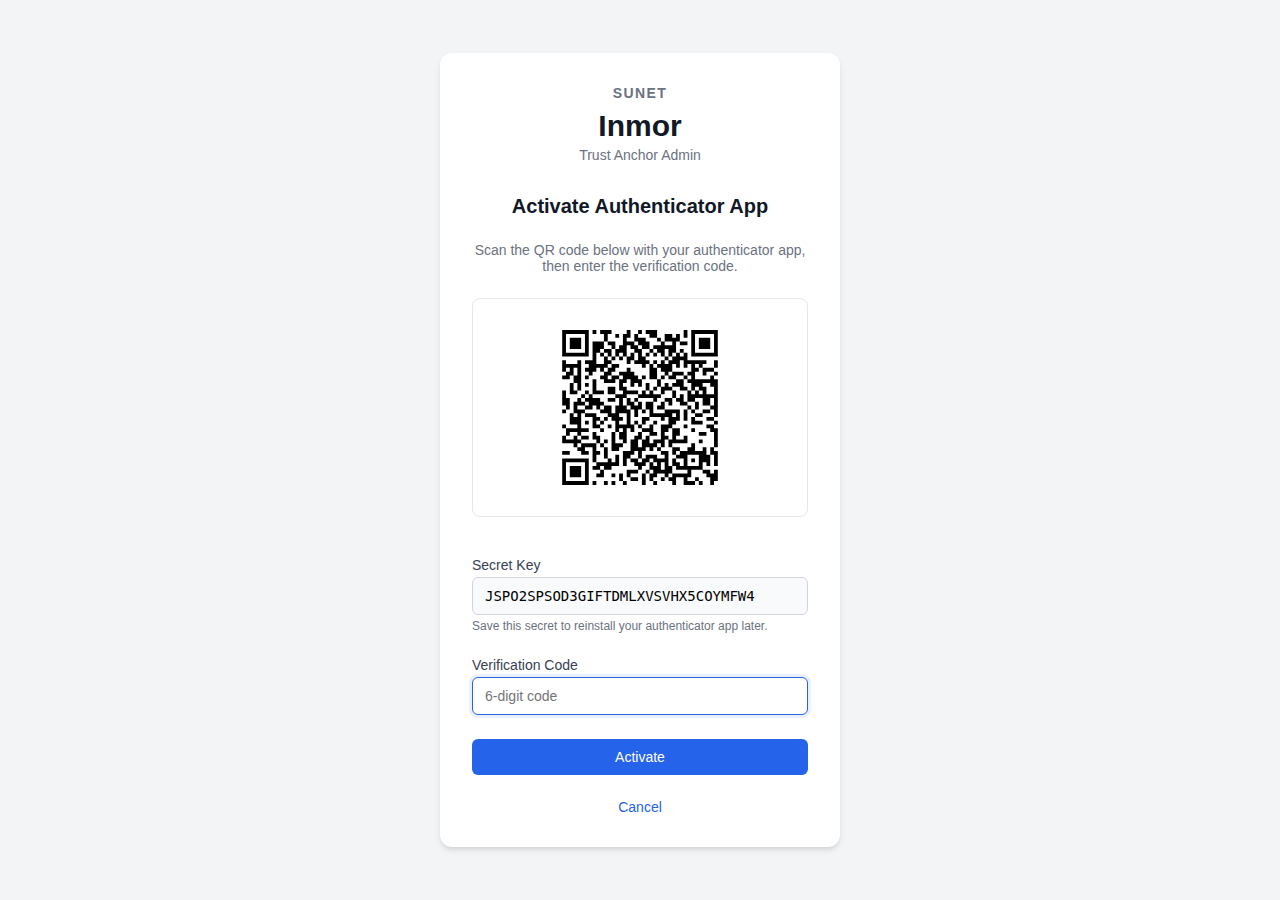
TOTP activation with QR code and secret key
Tip
Save the Secret Key shown below the QR code. You can use this to manually add the account to your authenticator app if QR scanning doesn’t work.
Recommended Authenticator Apps
Google Authenticator (iOS, Android)
Authy (iOS, Android, Desktop) - Supports cloud backup
1Password (iOS, Android, Desktop) - Integrated with password manager
Microsoft Authenticator (iOS, Android)
Setting Up Security Keys
WebAuthn security keys provide phishing-resistant authentication using hardware tokens or built-in platform authenticators.
Navigate to MFA Settings (
/accounts/2fa/)Click Add under “Security Keys”
Follow your browser’s prompts to register your security key
Give the key a memorable name
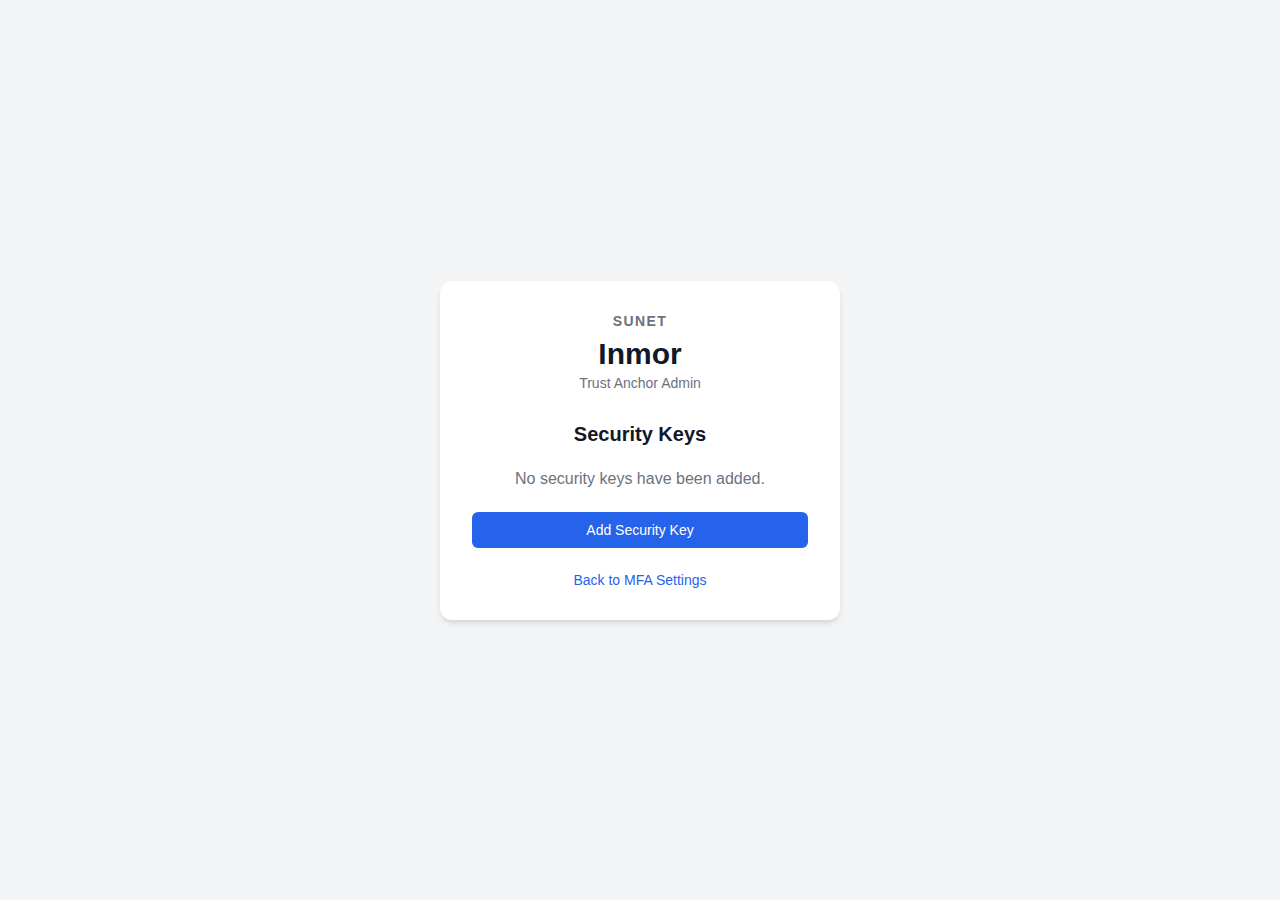
Security Keys management page
Supported Security Keys
YubiKey (USB-A, USB-C, NFC)
Google Titan (USB, Bluetooth)
Feitian keys
Platform authenticators:
Touch ID (macOS)
Face ID (iOS)
Windows Hello (Windows)
Fingerprint sensors (Android)
Recovery Codes
When you activate MFA, recovery codes are generated as a backup method. These codes can be used if you lose access to your authenticator app or security key.
Warning
Store recovery codes in a secure location separate from your password. Each code can only be used once.
To view or regenerate recovery codes:
Navigate to MFA Settings
Click on “Recovery Codes”
Download or copy the codes to a secure location
Logging In with MFA
After MFA is enabled:
Enter your username and password as usual
You will be prompted for your second factor
Either:
Enter the 6-digit code from your authenticator app, or
Insert and activate your security key
Re-authentication
For sensitive operations (like changing MFA settings), you may be asked to re-authenticate by entering your password again. This provides additional security for administrative actions.
Disabling MFA
To disable an MFA method:
Navigate to MFA Settings
Click Deactivate next to the method you want to disable
Danger
Disabling all MFA methods removes the extra security layer from your account. Consider keeping at least one MFA method active for administrative accounts.
Configuration
MFA is enabled by default in Inmor. To configure MFA settings, update your Django settings:
# Enable/disable MFA methods
MFA_SUPPORTED_TYPES = ["totp", "webauthn", "recovery_codes"]

# Require re-authentication for sensitive operations
MFA_PASSKEY_LOGIN_ENABLED = True

# WebAuthn relying party settings
MFA_WEBAUTHN_ALLOW_INSECURE_ORIGIN = False  # Set True for localhost dev
For production deployments, ensure your site is served over HTTPS as WebAuthn requires a secure context.
TOTP Secret Encryption
Inmor encrypts TOTP secrets before storing them in the database using Fernet symmetric encryption. This ensures that TOTP secrets are not stored in plain text.
Encryption Key Configuration
The encryption key is configured via the MFA_ENCRYPTION_KEY setting
or environment variable:
# In settings.py (default development key - DO NOT USE IN PRODUCTION)
MFA_ENCRYPTION_KEY = os.environ.get(
    "MFA_ENCRYPTION_KEY",
    "s098x330cQk5XaIdRWI2-bRsWiiy7ggvJfPrq8OKmQE=",
)
Generating a Production Key
Danger
You must generate a new encryption key for production deployments. The default key is for development only.
Generate a new Fernet key:
python -c "from cryptography.fernet import Fernet; print(Fernet.generate_key().decode())"
Set the key via environment variable in production:
export MFA_ENCRYPTION_KEY="your-generated-key-here"
Or in docker-compose.yml:
admin:
  environment:
    - MFA_ENCRYPTION_KEY=your-generated-key-here
Key Management Best Practices
Store the encryption key securely (e.g., in a secrets manager)
Never commit production keys to version control
Rotate keys periodically by:
Decrypting all existing secrets with the old key
Re-encrypting with the new key
Updating the
MFA_ENCRYPTION_KEYsetting
Back up the encryption key - if lost, users will need to re-enroll MFA
How It Works
The custom EncryptedMFAAdapter in common/mfa_adapter.py overrides
the default django-allauth adapter to encrypt/decrypt TOTP secrets:
from allauth.mfa.adapter import DefaultMFAAdapter
from cryptography.fernet import Fernet
from django.conf import settings

class EncryptedMFAAdapter(DefaultMFAAdapter):
    def encrypt(self, text: str) -> str:
        f = Fernet(settings.MFA_ENCRYPTION_KEY)
        return f.encrypt(text.encode()).decode()

    def decrypt(self, encrypted_text: str) -> str:
        f = Fernet(settings.MFA_ENCRYPTION_KEY)
        return f.decrypt(encrypted_text.encode()).decode()
The encrypted secret is stored in the mfa_authenticator table’s
data JSON field.
Troubleshooting
- QR code not scanning
Try manually entering the secret key shown below the QR code into your authenticator app.
- Security key not detected
Ensure your browser supports WebAuthn (Chrome, Firefox, Safari, Edge). Check that the key is properly inserted or NFC is enabled.
- Lost authenticator/security key
Use a recovery code to log in, then set up a new authentication method.
- Time sync issues with TOTP
Ensure your device’s clock is synchronized. TOTP codes are time-sensitive and require accurate time.